Grok with RemotePC MCP
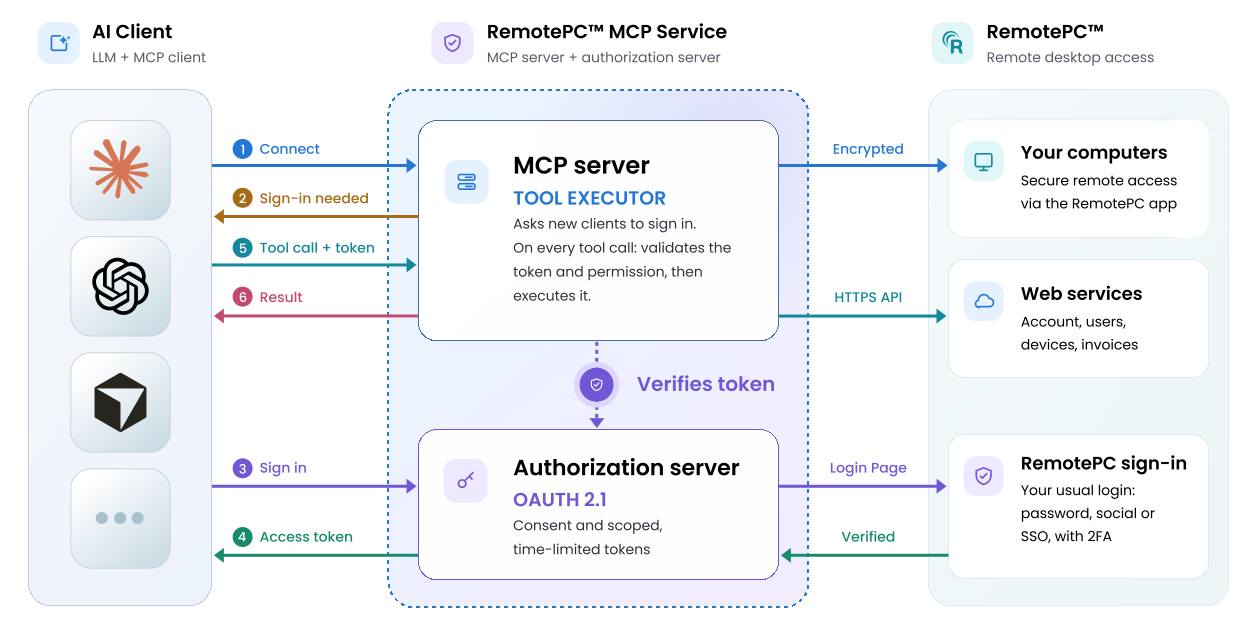
RemotePC MCP connects your RemotePC account with AI assistants and applications using the open Model Context Protocol (MCP) standard. It enables compatible AI clients to securely access supported RemotePC capabilities through standardized tools, without requiring custom integrations or scripts. This guide explains how to connect Grok with RemotePC MCP.
Prerequisites
- An active RemotePC account.
- Access to a Grok account.
Reference Architecture
Configure Grok with RemotePC MCP
- Sign in to Grok and start a chat.
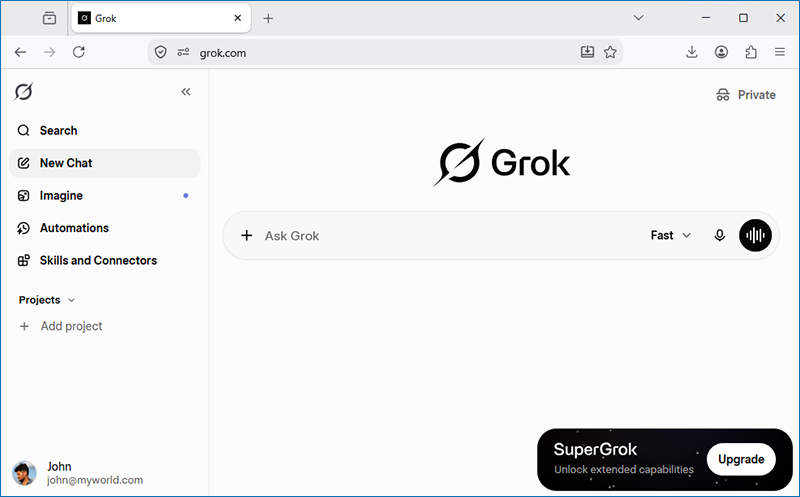
- Click + and select Add connector from the dropdown.
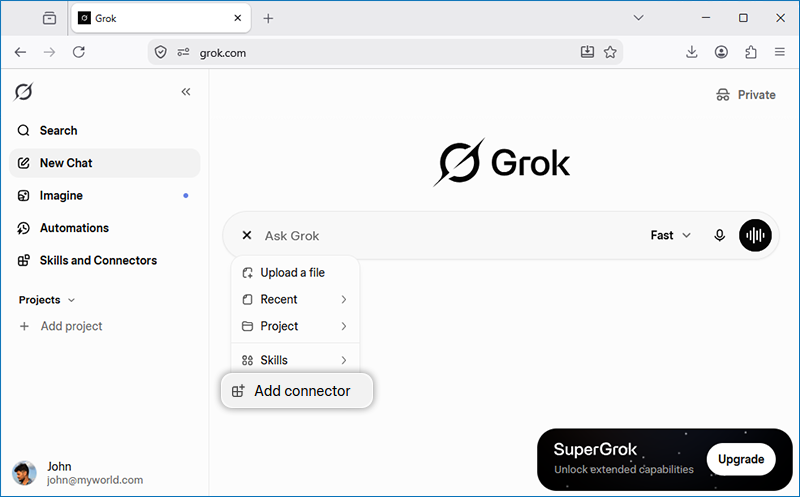
- In the New Connector popup, click Custom.
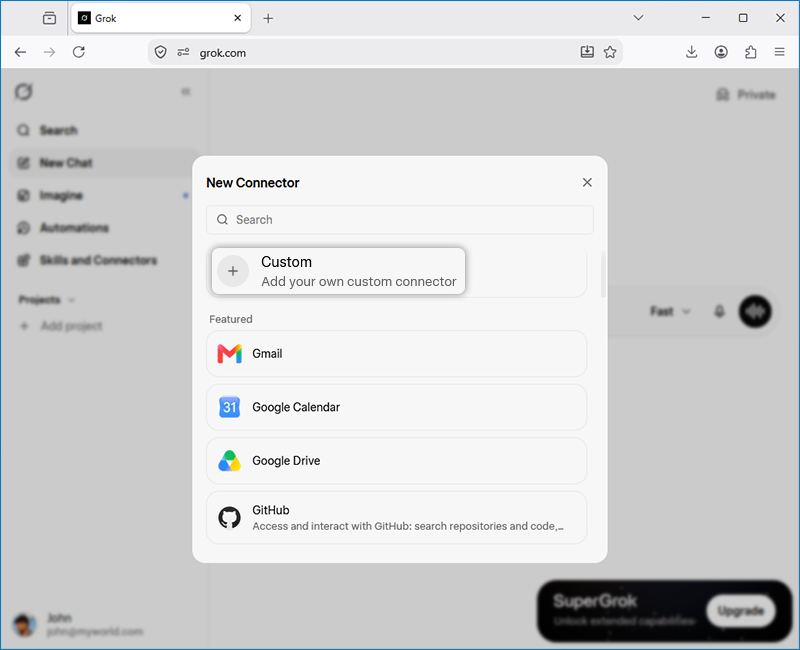
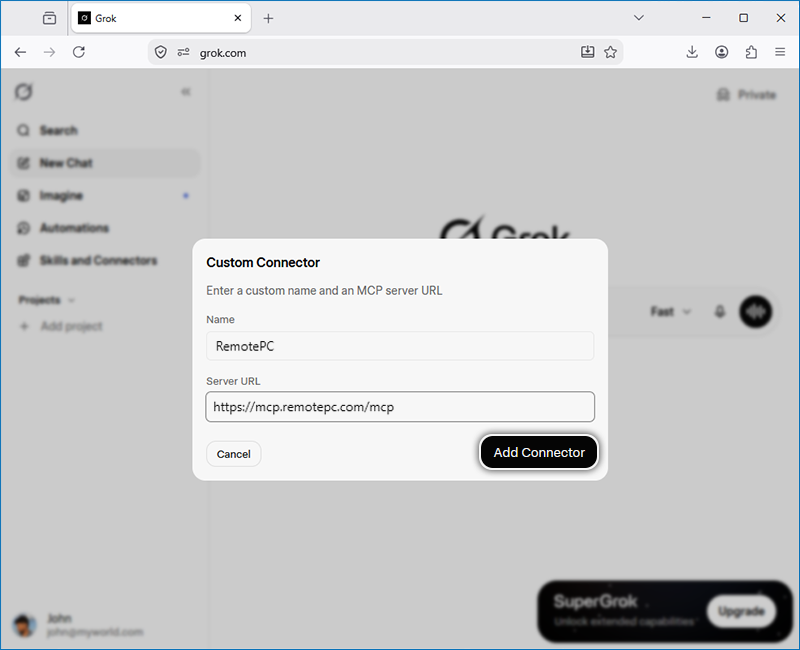
-
In the Custom Connector popup, provide the following details and click
Add connector.
- Name for the connector: RemotePC MCP
- URL of the MCP server: https://mcp.remotepc.com/mcp
You will be redirected to the RemotePC authorization page. Sign in to your RemotePC account.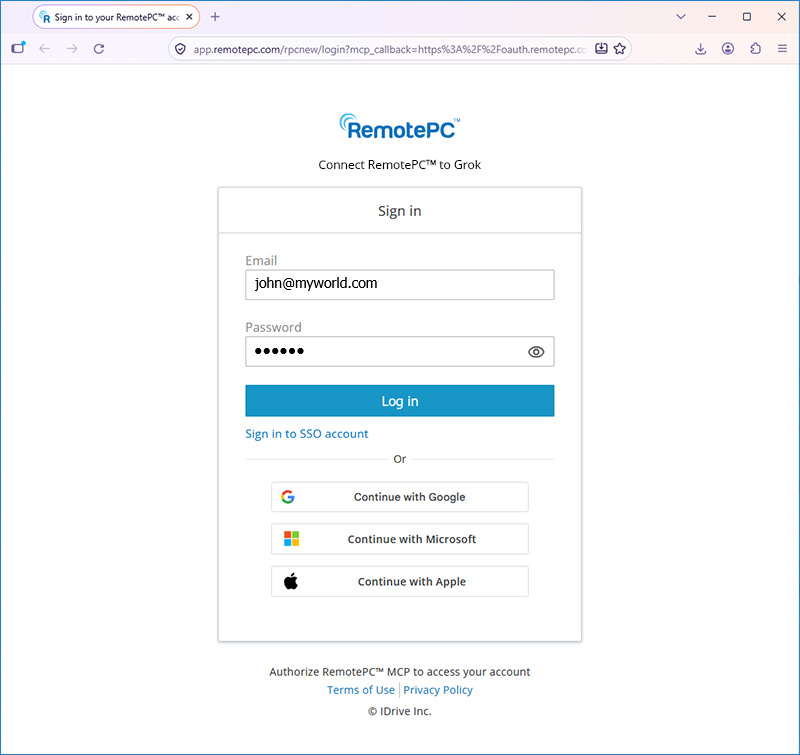
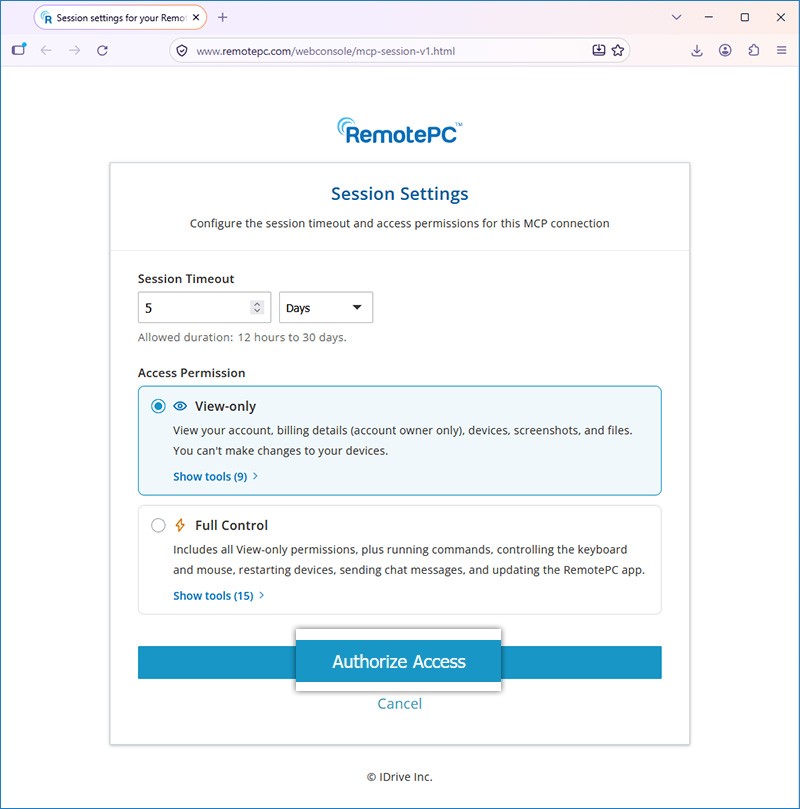
- On the Session Settings page, configure the following:
- Session timeout: Set how long the authorization remains valid. The timeout can be specified in hours or days.
- Permission: Select Full Control or View Only access.
- Click Authorize Access.
- After successful authorization, you will be redirected back to Grok.
RemotePC MCP is now connected to Grok. You can start using the supported RemotePC MCP tools through Grok. Reopen or refresh Grok if needed to make the RemotePC MCP tools available.